
Great Holiday Gift Idea - Publish Your Own Book
Here’s something for the person that has everything….
A do-it-yourself, self-published Blurb book. Take your best travel photos, wedding memories, short stories, recipes- whatever, and 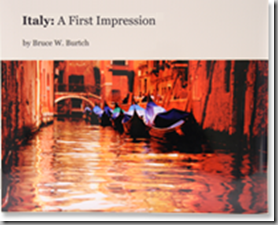 turn them into a great looking coffee-table style book.
You can then print just one book and give it as a special gift or “go national” and print hundreds. All without the need to find a literary agent or shop for a Madison Avenue book publisher. You can even sell copies of your book on the Blurb website for fundraising or in case you want to start your own “publishing” house.
The type of book you create is up to you:
- Photo books
- Travelogues
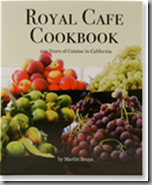
- Cookbooks
- Poetry or Short stories
- Family histories
- Personal memories
- Wedding or special event books
- Tribute books
- Replacement for the traditional scrapbook or photo album
Or just about any type of book you can think of. And with the holidays around the corner, think how grandparents might feel about receiving a photo book with photos of their favorite grand kids.
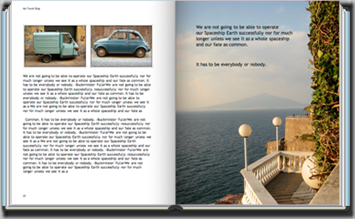
Blurb offers a variety of high-quality sizes and formats, (hardcover and soft) ranging from 7 x 7 inches (18 x 18 cm) to a larger coffee table sized 13 x 11 inches (33 x 28 cm). And Blurb books are not low-quality or flimsy, they use high quality paper and covers.
 The length of the book is up to you, starting with a 20-page minimum and topping out at massive War and Peace size 440-pager. Pricing varies based on the style of book and number of pages, with the entry price at just $12.95 for a 20-40 page 7 x 7 inch softcover book. The largest format hardcover book with dust jacket starts at $54.95. All prices include 4-color printing. Shipping is extra.
With an invitation from Blurb to create a book, I had one idea, which was a result of recent visit to my Mom’s home. While there, I found a huge box in the back of a closet with tons of old family photos dating back to the 1920s. With hundreds of photos, some in photo albums, most not, I realized that putting them all into one bound coffee-table style book would be an ideal solution. First, it would force me to get all of these family treasured photos into a non-fading, editable digital format, and second; would allow me to share a copy of the book with all my relatives.
 But that big of a project would have to wait. First I wanted to create a simpler “first-try” book entitled, Images of Washington, DC 2007 (catchy huh?).
It’s would be a collection of my best photos of Washington, DC taken throughout this past year.
So here’s my review of creating a Blurb photobook, from concept to mass-market New York Times best-seller distribution, I mean, holiday gift giving.
First, I selected about 180 photos, some of which I first needed to edit, crop and adjust. A few hours later, after randomly putting them all into one easy to find PC folder, I was ready to start my book.
I decided to create one of the larger format photo books, which will hopefully be sitting on my living room coffee table in time for my holidays guests to notice and rave about.
The anticipated pricing for my new coffee table hardcover book of DC photos, assuming I’d need 81-120 pages was listed at $74.95. That price seemed very inexpensive for a personal 100-page hardcover photo book.
You’ll need to publish your book by December 9th to ensure is arrives by the 24th.
So off I went down the book publishing road…
MORE — READ ABOUT MY BOOK CREATING EXPERIENCE AND THE END RESULT —>
I’ll described my journey to publishing my first Blurb book so that you get an idea of how simple it was. First, to set of baseline, I’m not a techie or PC geek, but I am fairly adapt at figuring out new software fairly quickly. 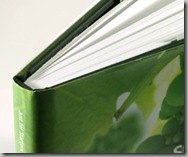
The process to get started was simple. First register at Blurb, then download and install Blurb’s BookSmart software. It was fast (under 2 minutes) and simple to download and install.
The user interface took me through the initial steps. First, naming my book, then selecting the size and format, including either soft or hardcover.
Next it let me upload my photos (my collection of photos was almost a full gig); some of which you may have seen featured on The DC Traveler.
One photo feature I really liked was the ability to use photos not just from my PC, but from other outside photo sources including Flickr, SmugMug and others. Another option was to invite friends and family to contribute photos to your project. This feature would be ideal for collecting photos from weddings, family reunions, for family history books or group trip books.
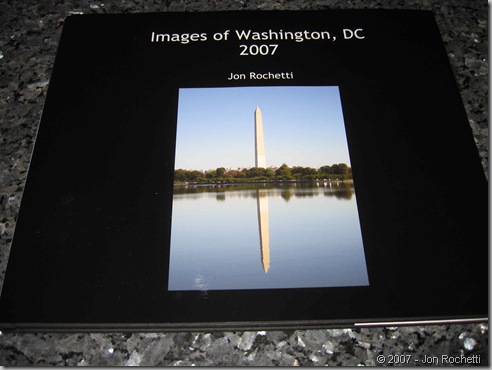
I had no issue loading my 180 photos, but once they were loaded, I could only view about 15%, the rest were displayed in a negative format (blues and purples, not full color) in the preview screen. So to remedy, the only way I found was to click on each one and let it “preview” into the image previewer, one at a time. Each took about 4-5 seconds. That was a bit time consuming (about 15 minutes), considering the photos were already saved on my PC, as was the software, and I wasn’t uploading them to Blurb’s website. But after clicking on each one, they all previewed except for one.
So far, so good.
To start the creative process, I selected one photo for the book’s cover. A folder system or separators in the photo viewer would have helped me keep my photos organized by theme, so I could easily find and select them. I had to search through all 180 looking for the one I wanted. The software did however let you organize photos by date or alpha. Had I known in advance, I could have numbered them before starting.
Next, I started adding photos and captions onto pages, using the preformatted templates, then arranging the pages into chapters by subject - Monuments, Gardens, Buildings, Cherry Blossoms, Seasons, etc.
The design tool was fairly easy to figure out and intutive, but it’s smart to run through the tutorial to learn a few of the basic elements, such as page layout, font formatting, etc., before beginning. After a few tries and a bit of searching here and there, I was creating pages faster than Stephen King.
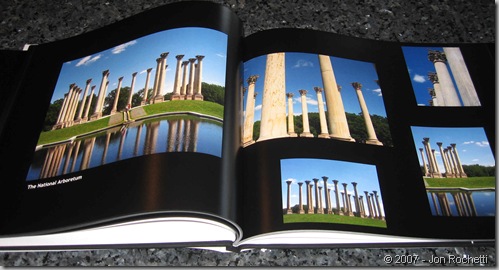
I selected various pages from the 76 pre-formatted photo template pages (versus the 31 “text” templates). While 76 sounds like many, at times I wanted more options. But I worked within the provided templates and always found an acceptable compromise. In Blurb’s online help, it did mention that they were adding additional templates on a regular basis.
The first 10 pages took probably an hour. Once I understood how things worked, my learning curve significantly improved, and over time pages were created in about a minute or two each. Eat your heart out J.K. Rowling.
Some of the features I found very helpful included:
- The desktop was clean and uncluttered and very easy-to-understand.
- The “hide used photos” option, which removed any photo that had already been used from the photo viewer, helped me not reuse any.
- The photo “zoom/crop” tool, let me increase or decrease the size of the photo on the page and made changes exceptionally simple.
- The photo placement options, allowed me to align photos centered, top-right or bottom-left and made aligning photos easier.
- The option to add borders, special characters, backgrounds and themes gives you the ability to truly customize your book.
- The preview option allowed me to see the book exactly as it will print. Ideal for proofreading and conducting a final review.
- The automatic “save” was very useful, insuring I didn’t lose my work.
At a couple points during my creative process, I experienced a few bugs with or feature missing from the software:
- About half the time, changing the font size larger often took to a couple tries before it was accepted.
- Ruler or grid lines would have been helpful to consistently align photos and text on pages.
- Clicking between text and photo editing required a single mouse click. I think I would’ve preferred a double mouse click which is common for so many other software programs.
- The Help section was a bit light in both organization and content/FAQs. I was unable to find answers to a couple questions.
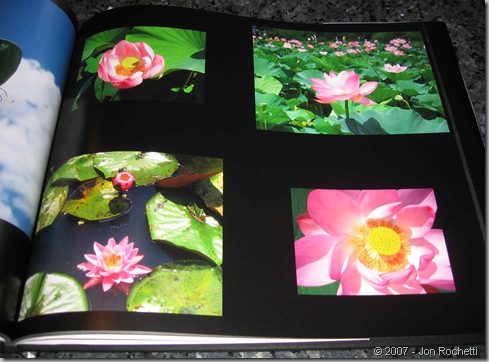
After creating all the pages, and then going back and making some final tweaks, I saw how each page looked as a two-page spread. I (hesitantly) hit “publish”.
The uploading process was easy. My book ultimately used 150 photos spread over 92 pages and took only 15 minutes to upload (over my cable Internet connection).
The confirmation e-mails and
I wanted patiently (yea, right) for my book to arrive in about a week (I should have chosen a faster delivery option). And when it arrived last evening, I opened the package, and I was completely delighted.
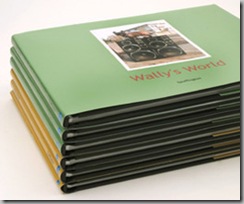
The dust jacket, cover and paper is of high quality, the images were printed in high resolution and the overall look and feel is similar to a store-bought coffee-table photo book. I admit, I was feeling a bit smug and realized I might be experiencing the same thing Ansel Adams must have felt when he saw his first photo book.
The only minor problems I noticed was a small flaw on a page that looked like a water spot on the paper and a few pages that had page numbers. I recall selecting a global options for no page numbers, but I assume it was my error.
On a rate from 1 to 5, I’d give the Blurb self-published book a solid 4.75. It lost a few tenths for a few software issues. It is something I would definitely do again.
So if you want to truly unique and personal gift, I highly recommend creating your own Blurb book. It will be a very memorable, one-of-a-kind gift that will really stand out.
It would also make a great gift for someone who might love to create their own book. Blurb doesn’t currently offer a gift certificate option, but I assume that’s something Blurb will be adding in the future.
My friend Mary Jo at Fly Away Cafe also created her own book, if you’d like to read about the process from another perspective.
Remember, you need to act quickly if you want your book by Christmas.
___________________________________________________
 4 Comments
[...] look like. For another reivew of the process and end product, you can read what Jon at The DC Traveler has to [...]
[...] presents Great Holiday Gift Idea - Publish Your Own Book posted at The DC Traveler. Here’s a great way to remewmber your favorite trip. Creating a [...]
[...] at The DC Traveler said that Blurb was a great holiday gift idea. You know, that’s still going to be true come [...]
Great post! This is a really good idea and would make a nice gift for someone too.